How to Add the Xiangqi Shortcut to Your Phone's Home Screen (iPhone & Android)
How to Add the Xiangqi Shortcut to Your Phone's Home Screen
Did you know Xiangqi Online can be installed like a real app on your phone — no App Store or Play Store needed? It takes just 30 seconds, and once installed you'll:
- ✅ Open the game fast with a single tap from your home screen
- ✅ Play in full-screen mode, with no browser address bar in the way
- ✅ Get full push notifications (especially important on iPhone — see the note below)
📱 On iPhone (Safari)
Important note: On iPhone, push notifications only work when you open the app from the icon installed on your home screen (requires iOS 16.4 or later). Opening it in regular Safari will not deliver notifications.
Steps:
Open Safari and go to the Xiangqi Online page.
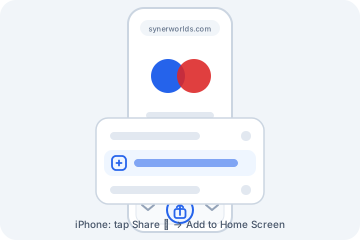
Tap the Share button (the square with an up arrow) on the bottom toolbar.
Scroll down and choose "Add to Home Screen".
Tap "Add" in the top-right corner.
🤖 On Android (Chrome)
Steps:
Open Chrome and go to the Xiangqi Online page.
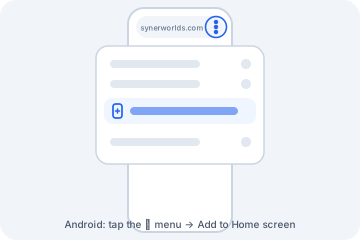
Tap the menu ⋮ (three vertical dots) in the top-right corner.
Choose "Add to Home screen" or "Install app".
Confirm by tapping "Add" / "Install".
🎉 Result
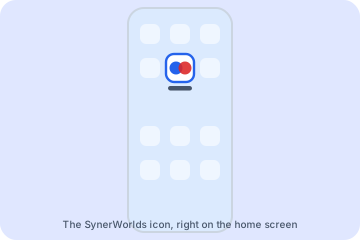
Once installed, your home screen will have the Xiangqi icon like a real app. From now on, just tap the icon to jump straight into the game!
🔔 Enable Push Notifications After Installing
Don't forget to turn on notifications so you never miss a move:
Open the app from the newly installed icon (important!).
Sign in to your account.
Go to the avatar menu → Settings → turn on 🔔 Push Notifications.
Allow it when your phone asks for notification permission.
Press the 📨 Test button to check — if you see the notification pop up, it's working!
From now on you'll get notifications when: someone challenges you ⚔️, it's your move in a room ♟️, it's your move in correspondence chess ✉️, or your opponent resigns 🏳️.
Have fun! ♟️